

Kyle Turner: The Rabbitohs legend who never forgot his roots
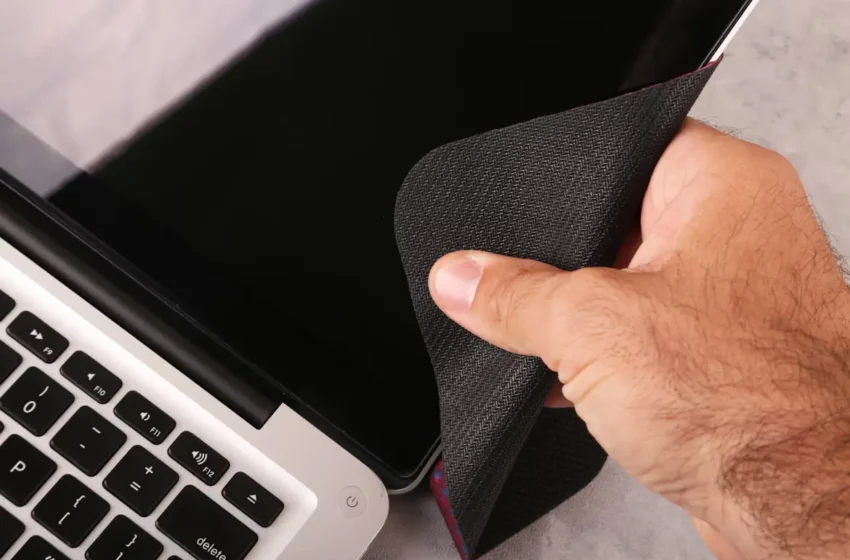
How to clean a laptop screen safely
Whether you’re working from home, studying, playing games, or just browsing the Web, your laptop screen is likely one of the most consistently used surfaces you touch each day. Because of this constant use, it quickly collects dust, fingerprints, and grime, which can reduce clarity and affect your comfort when viewing. If you’re in Australia and looking to safely clean a laptop screen then you are open the right article. This article discusses simple methods for how to clean a laptop screen safely, including using a microfiber cloth and gentle cleaning solution, along with avoiding harsh chemicals.
How to clean a laptop screen: Step-by-step
Now you’ve got everything you need, let’s walk through how to clean your laptop screen the proper way:
1. Power down your laptop
Before you do anything else, make sure your laptop is powered down and unplugged. You should leave it unplugged to avoid any unexpected button mashes or electrical activity while you clean. Leaving it off will also allow you to see any dirt or smudges easily once the screen is black.
2. Clean with a dry microfiber cloth
Start by dry, clean microfiber cloth to gently wipe down the screen. Use a dry cloth to gently move in circular motions across the screen, lifting away loose particles and dust.
3. Lightly wet the cloth
Dry cleaning doesn’t remove all the smudges. First, lightly dip the cloth in water. You can either buy a screen-safe cleaner or make your own by mixing equal parts water and isopropyl alcohol.
4. Gently wipe the display screen
Now, the last thing to do with the damp cloth is to gently wipe the screen in circular motions. Do not press too hard, as this could cause damage to your screen or unwanted pressure marks.
5. Clean the edges and corners
Dust and dirt often build up in the corners and along the edges of a laptop screen, making these areas the hardest to clean. To tackle these spots, lightly dampen the tip of a cotton bud and carefully wipe around the edges.
6. Dry the screen
Once you’ve cleaned the entire screen, take a dry section of your microfiber cloth and gently buff the surface to soak up any remaining moisture. This extra step is handy as it helps keep the display spotless and gets rid of any pesky streaks.
Why should we clean our laptops regularly?
It’s essential to clean your laptop regularly to maintain its performance, extend its lifespan, and keep it hygienic. Dust and dirt can build up on the inside and screen of your laptop, which may encourage it to overheat, cause glare on the screen, or, in extreme cases, lead to a complete hardware failure over time.
Key reasons for regular cleaning include:
- Improves performance: Removes dust that can block vents and cause overheating.
- Prevents screen glare: Keeps the screen free from smudges, ensuring clear visibility.
- Extends lifespan: Reduces wear and tear on components, and your laptop improving longevity.
- Enhances aesthetic: Keeps the laptop looking new and professional.
Cleaning different types of displays
Different laptops have different screen types, and some will be softer than others.
- Matte screens: A soft cloth, along with a little water and an alcohol mix, should suffice.
- Glossy or touchscreen laptops: They need additional care. Use only screen-safe cleaners and ensure your cloth is ultra-soft.
- MacBook or high-end laptops: Apple and other brands recommend using specific screen cleaners or only distilled water. Always check the manufacturer’s website.
What mistakes to avoid when cleaning your laptop
When cleaning your laptop, avoid making the following mistakes that can ruin your device:
- Don’t use paper towels or tissues.
- Paper towels and tissues are too rough and may scratch the screen.
- Don’t spray the cleaning solution directly into the screen.
- Always spray the cleaning cloth first and then gently wipe the surface with the damp cloth.
- Rough towels, rough pads, or wipes with harsh cleaning solutions will leave scratches and residue on the screen.
- A light hand with some gentle pressure is all you need to ensure your laptop screen stays in good shape and doesn’t need any repairs.
Final thoughts
To keep your laptop looking good and working well, it’s important to know how to clean your laptop screen properly. Regular cleaning of your laptop’s screen will remove dust and dirt, which helps reduce glare and improves visibility. It also contributes to the longevity of your device. By following the advice in this article—such as using the correct cloth for cleaning, avoiding harsh chemicals, and cleaning with care—you’ll have a better experience when maintaining your screen. Remember, how to clean your laptop screen isn’t just about appearances; it can also impact your long-term laptop experience.